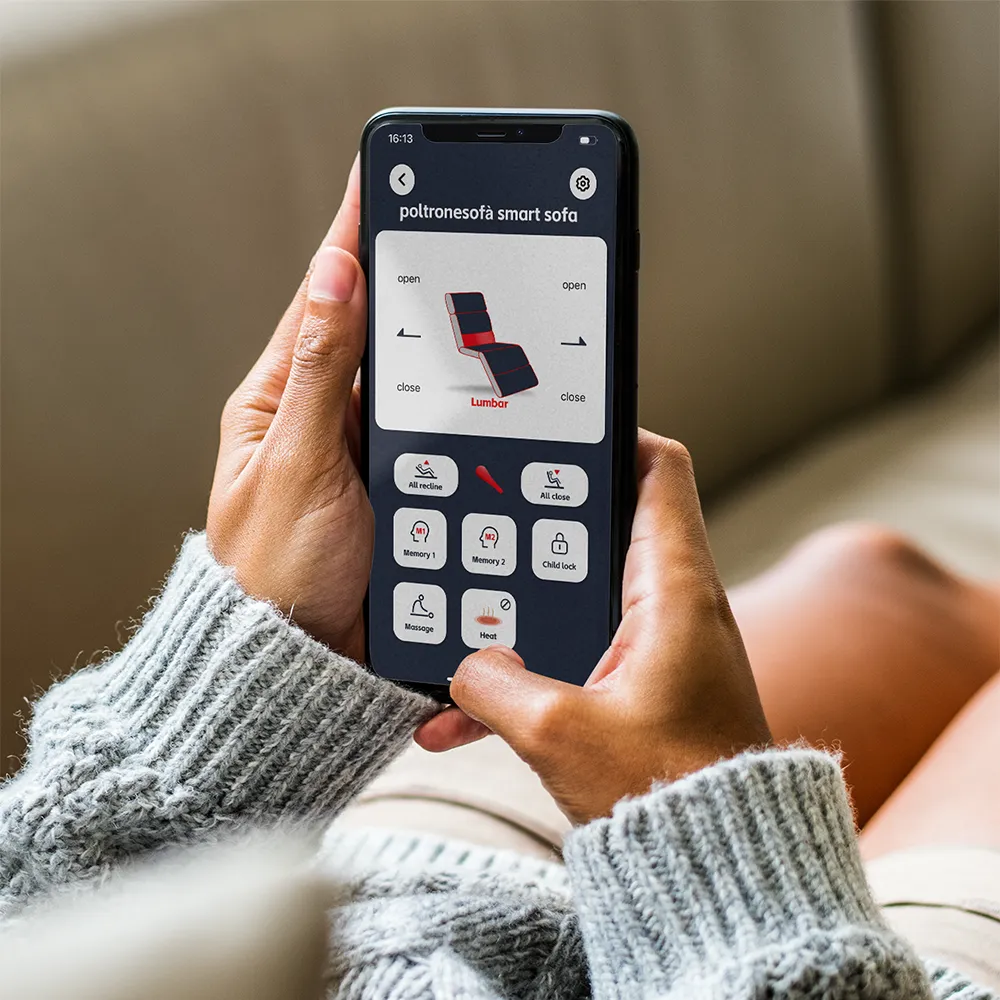
How to use the sofa app with your Adstock
Getting Started
First, download the
 poltronesofà Smart Sofa app from your app store:


Once the app is installed:
- Ensure Bluetooth is turned on.
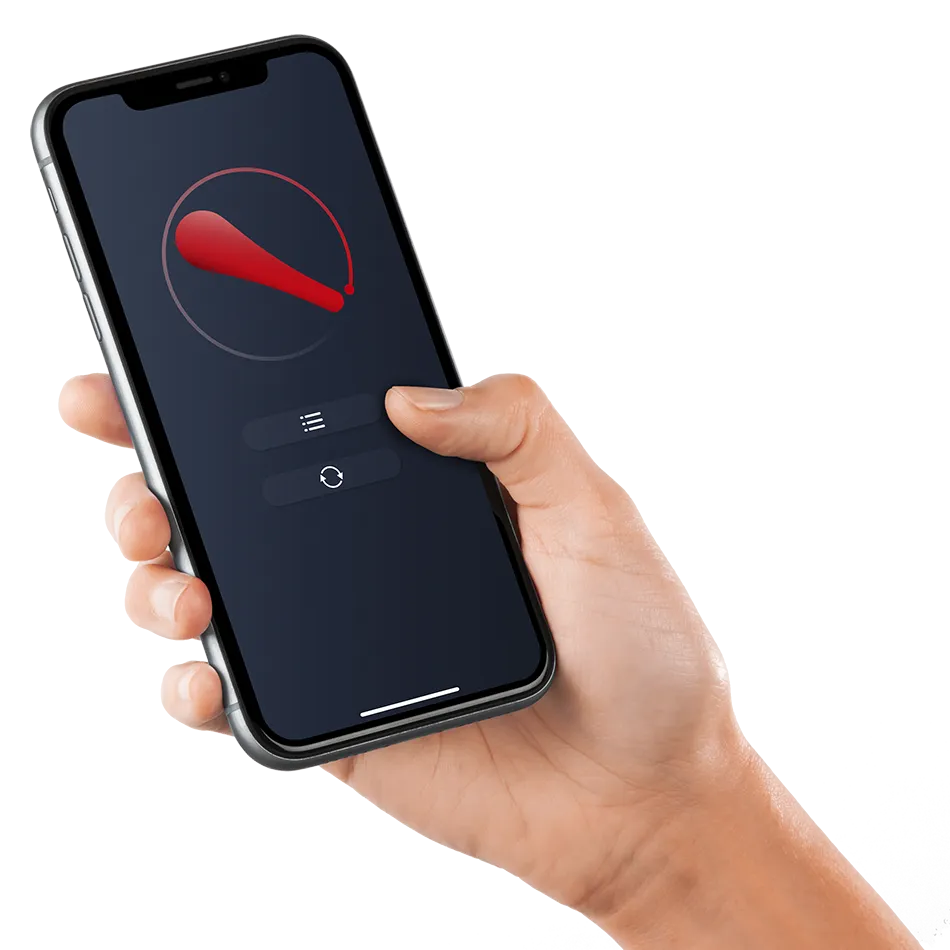
- Tap the refresh symbol to connect to the sofa.

- If you have more than one compatible sofa, make sure you're seated on the one you want to control.
- Once connected, you can easily control all sofa features directly from the app via the list icon.

Main Controls
Here’s what each button does in the Control Centre:
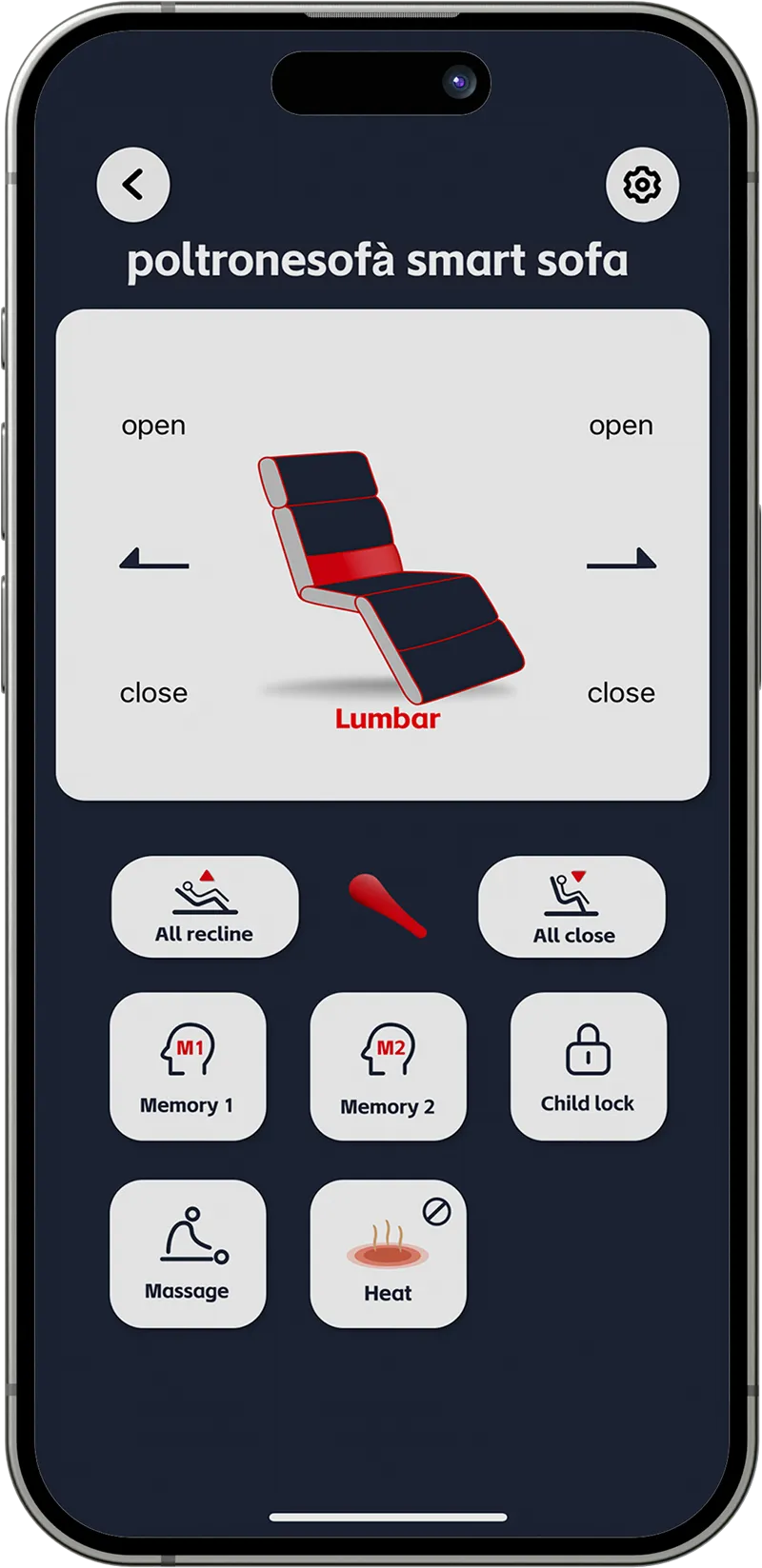
 Switch Control Position
Press to change control type (e.g. headrest to recliner).
Switch Control Position
Press to change control type (e.g. headrest to recliner).
 Open
Press and hold to extend the motor (e.g. recline).
Open
Press and hold to extend the motor (e.g. recline).
 Close
Press and hold to return the motor to its starting position.
Close
Press and hold to return the motor to its starting position.
 All Recline
Press and hold to fully open all motors.
All Recline
Press and hold to fully open all motors.
 All Close
Press to fully close all motors.
All Close
Press to fully close all motors.
 Memory 1 & 2
- Set the sofa to your preferred position.
- Tap a memory button to save the position and confirm on the popup.
- Press and hold next time to return to that position automatically.
 Child Lock
- Press and hold for 3 seconds to switch on/off.
- Short beep = Lock On / Long beep = Lock Off.
- When locked, no buttons will respond until unlocked.
 Massage
- Press to cycle through Mode 1 → Mode 2 → Mode 3 → Off.
- Automatically switches off after 30 minutes.
 Heat
Heat
- Press to cycle through Low → Medium → High → Off.
- Automatically switches off after 30 minutes.
Please note: If the child lock is on, both the app and sofa console controls won’t work. Turn off the child lock before reconnecting.
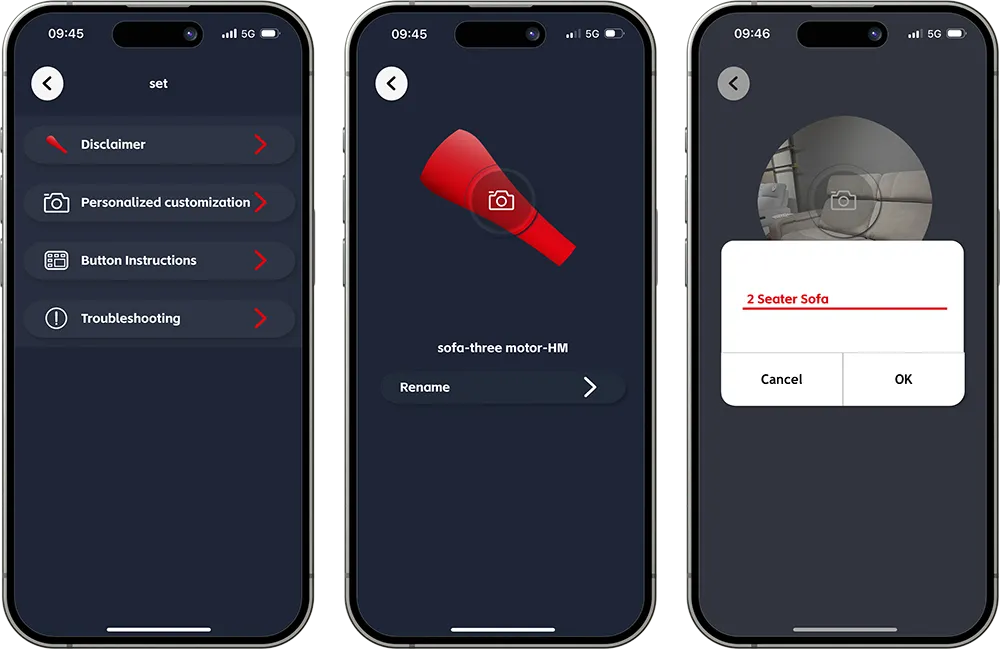
Customise Your Dashboard
- Go to Settings, then select Personalise.
- Click the photo icon to upload an image of your sofa.
- Rename it to something recognisable, e.g. “2 Seater Sofa”.
Additional Feature Controls
Important: On your device’s Bluetooth settings, find and connect to the speaker name: Poltronesofà Music ADSTOCK-XXXX (the last digits vary by sofa).
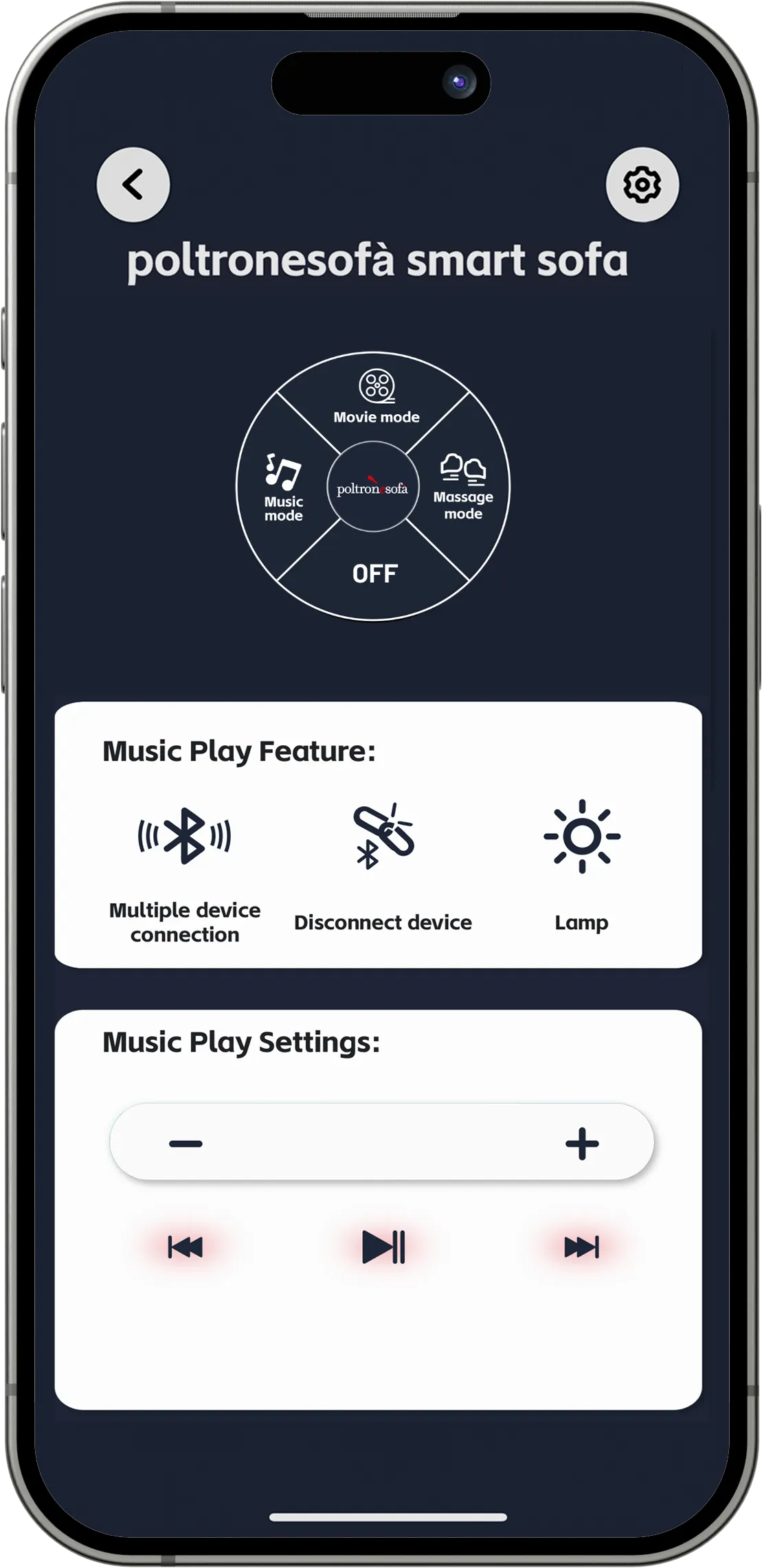
 Music / Speaker Controls
- Start playback in your preferred music app (e.g. Spotify).
- Tap Play/Pause to control music from your connected device.
- Tap Volume Up/Down to adjust sound levels.
- Tap Previous/Next to change tracks.
 Light Strip
- Press to turn the light on.
- Once the icon turns red, press and hold to open the light control panel.
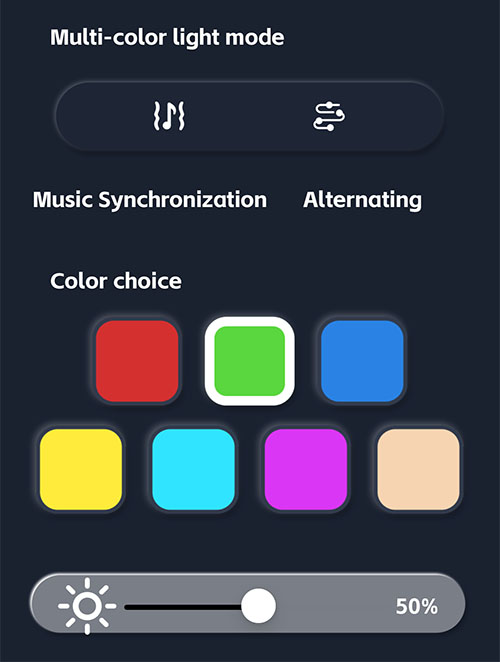
- Choose to sync lights with music or alternate colours.
- Select your desired colour and brightness level.
- To turn the light off, press “Lamp” — the icon will go black.
 Massage Feature
- Press to turn massage functionality on or off.
Bluetooth Controls
 Reset Bluetooth
- Only one person can connect to a sofa at a time.
- To switch devices, press and hold for 2 seconds to disconnect the current one.
 Multiple Device Connection
- Add multiple speakers to play the same sound if supported.
- Press to toggle multi-device mode on or off.
- Press the multi-device connection button until it turns red.
- To sync additional seats, return to the control dashboard, select the seats, then press and hold the button to play music across all selected units.
Top Tip: For the best sound and lighting performance, keep your device close to the sofa and avoid Bluetooth interference.
Sofa App FAQs
Getting Started
How do I download the Sofa App?
You can download the Poltronesofà Smart Sofa App from your device’s app store.
Do I need to create an account?
No account is required. Simply download the app, ensure Bluetooth is on, and you’re ready to connect.
How do I connect my sofa via Bluetooth?
Turn on Bluetooth, then open the Control Centre in the app.
Grey logo = Not connected
Coloured logo = Connected successfully
Tap the refresh symbol to connect.
Once connected, you can control all sofa features directly from the app.
What if my sofa won’t connect?
Press the refresh button and ensure you are close to your compatible sofa.
Using the App
Does the app work when I’m not at home?
No, you must be within Bluetooth range of your compatible sofa.
Safety & Support
Where can I find a user guide?
You’ll find a user guide in the app or alongside your product details. It walks you through everything step by step.
How do I get support?
The app includes a troubleshooting guide for common questions. If you need more help, visit the Support section within the app.